MyWheels is a shared car service. There are more than 2,700 MyWheels cars in the Netherlands that you can easily book. You can reserve the car for a specific period, open and close it via your phone, and always return it to the correct location.
Check scooters
MyWheels is a shared car service. There are more than 2,700 MyWheels cars in the Netherlands that you can easily book. You can reserve the car for a specific period, open and close it via your phone, and always return it to the correct location.
Electric Amber cars
Like MyWheels, Amber is a shared transportation provider. Just like with MyWheels, you can also find, book, open, and close an Amber car directly from the Figo app. You can always book Amber cars from a marked Amber zone or Amber hub. You’ll also find available Amber cars among all the other cars on the map.
When planning your Amber ride, you can specify where you’ll return the car. This can be at any hub or Amber zone in the Netherlands. This means you can rent the car in Amsterdam and return it in Rotterdam, for example.
Amber is available in various cities including Amsterdam, Utrecht, Rotterdam, The Hague, Tilburg, Eindhoven.
There are three ways to find Amber:
1. Amber cars can be found among all other cars on the map (green dots on the map if available)
- You can book Amber cars using the Car Delivery feature. You’ll find this button on the map. It allows you to have a car delivered to your selected location.
3. You can book Amber cars through hubs, which you can recognize on the map by a round dot with the Amber logo, see ????
With Amber car delivery, you can order an electric car from your selected location within the designated Amber zones. Amber car delivery is available in Amsterdam, The Hague, Rotterdam, Utrecht, Tilburg, and Eindhoven.
How do I order and have a car delivered to my location?
- Open the app and click on “Car delivery”
- Enter the start, end and any intermediate locations
- Confirm your booking. Amber will make sure your car is ready.
Booking an Amber car through the Figo App is very easy:
- Select an Amber car via:
- An amber car on the map
- The Car delivery function
- Or via an Amber hub
- Add (start) and an end destination (Always an Amber hub or zone)
- If the starting location is the same as the ending location, we’ll also ask you to add intermediate locations. This way, we can calculate how much battery you need.
- Confirm your booking. You’ll receive a message when your booking is about to begin.
Amber delivers cars to various hub locations throughout the country. You can generally book an Amber car at least three hours in advance, ensuring Amber can deliver the car. Nighttime, for example, falls outside Amber’s service hours. By selecting the correct time, you can see whether the Amber hubs turn orange or gray. Orange is unavailable; gray is available.
At Amber, you pay an hourly rate and a fee per kilometer. The price shown in the app is the price excluding VAT. The hourly rate has a high and low rate:
Every day (07:00 – 19:00) € 2.50
Every day (7:00 PM – 7:00 AM) € 1.00
Minimum fare €7.50
Amber cars have a range of 200 to 400 kilometers. This depends on the weather conditions, your driving style, and the car you get. Fleet operators ensure you always get an Amber with sufficient charge for your return trip.
Absolutely! You can also link your private payment information (credit card) to your Figo account. When booking a car, you can indicate, just like with MyWheels, whether your trip was business or personal.
Pick up & parking
If you want to return the car, you can easily do so using the “Navigate to Home Base” button or, when booking an Amber car, “Navigate to End Destination.” This button will navigate you to your home location/end hub. Depending on the provider, there are three types of home locations: Cars with a fixed location, cars that must be parked in a zone, and Amber cars that must be parked in a hub.
Fixed place
Cars with a fixed parking spot must be returned to the same parking spot where you picked them up. You’ll see an orange circle on your booking screen. This is the car’s designated parking spot.
Zone spot
Cars with a zone parking space don’t have a designated parking spot, but may be parked within the marked orange zone you’ll find in the app on your booking screen. Please note that if you park your car in a parking space with a charging station, you must also connect it to the charging station.
Amber Zones
Amber cars must be parked at a selected Amber hub. Want to know more about the zone? Click on Hub info to know what to expect. Charging stations are always available at the hubs, so make sure you always park your Amber car at a charging station.
To do this, please contact customer service. You can find the correct phone number in the reservation screen by clicking “Help” in the top right corner. Depending on who you booked the car with, you will be redirected to the correct car provider (for example, MyWheels). You can report this problem to the provider and request parking instructions. The support representative will tell you where you can park the car. Note the license plate number and model of the person parked illegally and provide them.
Cars with a designated parking space can be connected to any charging station within the zone. This means there’s almost always a charging station available. Are all charging stations occupied? Park your car in a free parking space near a charging station and contact us using the car provider’s support number. You can find this number in the reservation screen under “Help.”
You are responsible for paying parking fees during your trip. If you park in your car’s designated parking spot, you don’t have to pay for it; your car has a permit.
Cars with a designated parking space may be parked within the zone without paying a parking fee. Outside the zone, you must provide your own valid parking permit.
Please note: Electric cars from MyWheels in Amsterdam
MyWheels electric cars have a city-wide permit in Amsterdam and can be parked anywhere in the city without paying parking fees. Please note that you must connect the car to the charging station if you park it in a parking space with a charging station. These cars must also be returned to their designated zone at the end of the journey.
Open & close
Open with Figo App
Go to your booking in the Figo app (Menu> Reservations> Current Booking). On your reservation screen you will see a “Go” button. When you click on this, a lock icon will appear on the screen, which you can use to open and close the car.
Are you back and want to lock the car after your ride?
Are you sure you can close the ride?
– Is the key in the right place?
– Are you standing outside the car?
– Is the charger connected properly? (if it concerns an electric car)
– Did you get all the stuff out of the car?
Check! Then go to your reservation screen and click on “end trip”. Check that the car is locked properly.
If the car won’t open, check the following:
- Aren’t you too early? Has the ride started yet?
- Do you have mobile connectivity on your smartphone?
- Do you have your bluetooth turned on?
Still having trouble? Then click on “help” in the reservation screen and call the telephone number of the car provider. They can help you remotely.
If the car doesn’t lock, check the following:
- Aren’t you late? Is the ride over yet?
- Do you have mobile connectivity on your smartphone?
- Never leave your car unlocked, call us!
- Never lock the car with the key!
Still having trouble? Call the car provider via the “help” button on the reservation screen.
During your ride, you can open and close the car using the lock icons on the reservation screen. Always check carefully that the car is locked when you leave it. Only at the end of your trip do you lock the car using the “end trip” button. After that you will no longer be able to open the car.
No. Therefore, always check whether you have forgotten to take anything out of the car. Call the car provider or Figo Mobility: +31642259979
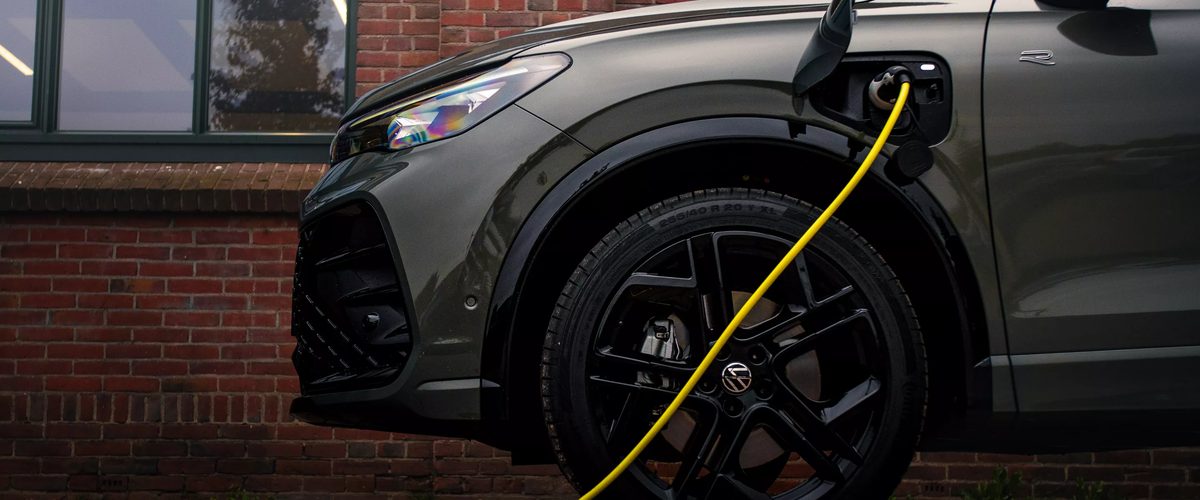
Electric charging
Charging while driving is possible at any public charging station. Instructions may vary by car; a manual with the correct charging instructions is located in the glove compartment of your MyWheels car.
During your trip, you decide where and when to charge. Be sure to do this on time, as charging takes time. You can find charging stations where you can charge using the charging key at www.oplaadpalen.nl .
When returning the car, please take the following into account:
- If the battery is below 80% at the end of your trip, always connect your car to a charging station within the designated area.
- If the battery is above 80% at the end of the trip, park the car in a spot without a charging station in the zone.
- If you park at a charging station, you’re required to plug in your car to charge. Unplugged cars will be towed, and you’ll be charged for the cost.
You can find available charging stations in the zone in the Figo app. They can also be found at www.oplaadpalen.nl , filtering by public charging stations.
You must have activated the charging station with the charging key. The charging station itself will always indicate whether the charging session has started. The lights on the charging station should turn blue.
If the lights show a different color, something is wrong. You can also check in the car itself whether charging has started correctly. This varies by car model; check the manual in the glove compartment.
Repeat the steps in the manual to get the car to charge. Make sure you’ve held the charging key to the charging station’s reader. Still experiencing problems? Contact the car provider. Click “Help” in the reservation menu and then click the provider’s number.
In that case, the car didn’t start charging after your trip. This is necessary so the next user can set off with a fully charged car. Possible causes:
- The cable is connected, but the charging station has not been activated with the charging key;
- The charging key has not been held properly against the reader on the charging station;
- The cable is not connected properly;
- The charging station is malfunctioning.
Return to your car to get it charging properly and avoid a fine. You can always call us, the provider, if you’re at your car and can’t get it to charge. We’ll unlock the car for you so you can access the charging key (for example, call MyWheels at 085-7734222). If the charging station is out of service, drive to another available charging station in the zone.
Cars with a designated parking space can be connected to any charging station within the zone. This means there’s almost always a charging station available. Are all charging stations occupied? Park your car in a free parking space near a charging station and contact us using the car provider’s support number. You can find this number in the reservation screen under “Help.”
Use the charging key to disconnect the charging cable from the charging station. Hold the card against the charging station for a few seconds until it lights up green. This means you can disconnect the cable. The procedure may vary depending on your car; consult the manual in the glove compartment for instructions on how to remove the charging cable. Always carry the charging cable with you during your journey and should not be left near the charging station.
The charging key is attached to the car key fob or is located near the car key; it’s a gray/green “drop.” You’ll find the car key in the glove compartment.
Refueling
MyWheels cars have a MultiTankCard fuel card in the glove compartment. This fuel card belongs to the car. You can find the PIN code in the Figo app on the reservation screen.
You return the fuel cars with at least ¼ (a quarter) tank so that the next user can hit the road straight away. When you fill up, you can fill the tank completely and pay with the fuel card located in the glove compartment.
The PIN code for the fuel card can be found in your current Trip.
Particulars
You can travel to all European countries with a MyWheels shared car. You do not need to report this when making your reservation. You can also count on roadside assistance abroad.
The fuel card often does not work abroad. After your trip, you can email your fuel receipts to support@figo.app, and we’ll make sure it’s settled.
Please note that there are generally fewer charging points abroad, so plan your trip carefully if you rent an electric car.
No. Because we also want to make our shared cars available to users with allergies.
You must be at least 18 years old and have a valid driver’s license. The minimum age for electric cars is 21 years.
No. We like to keep our shared cars fresh for everyone who uses them. Smoking in the car also carries a fine of €85.
Figo Travel Card
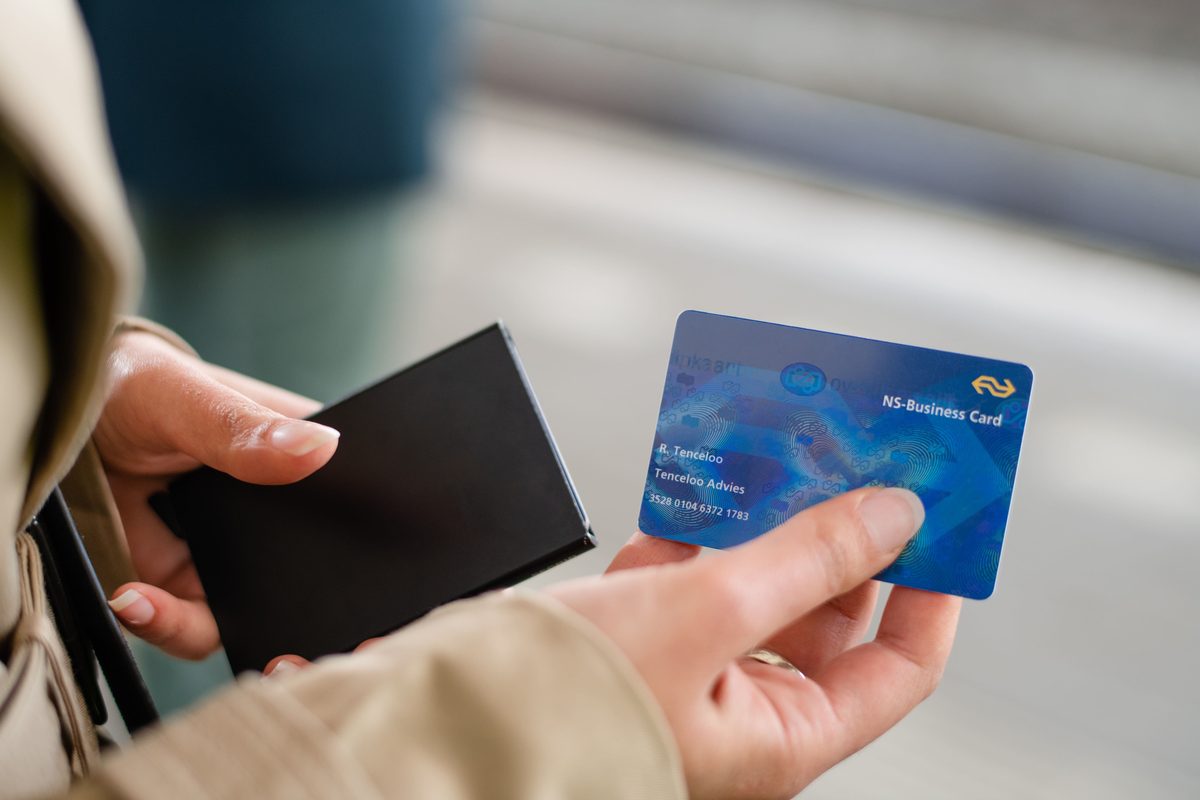
The Figo Travel Card is a payment card you can use for all kinds of mobility services. Think of it as a card for your mobility budget. The card is provided by your employer. So, if you want to book travel outside of the Figo app, you can use this card.
So, what do you get from the travel card?
The Figo platform offers several sharing services that you can use for work-related mobility. To ensure you can also use services outside the platform, you can use the Figo Travel Card, such as Sixt, ShareNow, Greenwheels, or your parking app.
The offer depends on your employer, so if a provider isn’t working for you, let us know.
The Travel Card can be used for various mobility services where you can also pay by credit card. For example, in the Felyx app or ShareNow, Sixt, Greenwheels, Go Sharing, Tier, Green Mobility, Uber, Bolt, and even ParkMobile. Figo is also working hard on OV-Pay, so you’ll also be able to use the card for public transport in the future.
To use your Travel Card, you must first activate it. Activating it is easy:
- Go to your Travel Card via the menu
- Read the steps carefully and click on ‘activate card’
- Create a personal PIN code. This PIN code may be required for certain purchases.
- The card is then activated and can be used
Don’t have access to the Figo Travel Card yet? Contact your employer or Figo Support.
As with all business expenses, receipts or invoices must be submitted with each expense. Once a transaction is recorded via the Travel Card, you’ll receive a notification in the Figo app to complete the transaction. We’ll also ask you to upload the invoice or receipt via the app.
If your employer offers a Travel Card, you can request one through the app. Some employers who use Figo don’t offer this. Want to know more? Ask your manager or call Figo’s service number.
The Travel Card can be added to your Google Wallet. Unfortunately, you currently have to do this manually. For iOS:
1. Go to your wallet
2. Click on the plus sign
3. Click on Add payment card
4. Search for Figo Mobility
5. Enter your card details and your card will be added to your wallet
For Android:
1. Go to your Wallet
2. Press Show All
3. Tap Add to Wallet
4. Press Payment Card
5. Tap New Debit or Credit Card
6. Enter your card details and your card will be added to your wallet
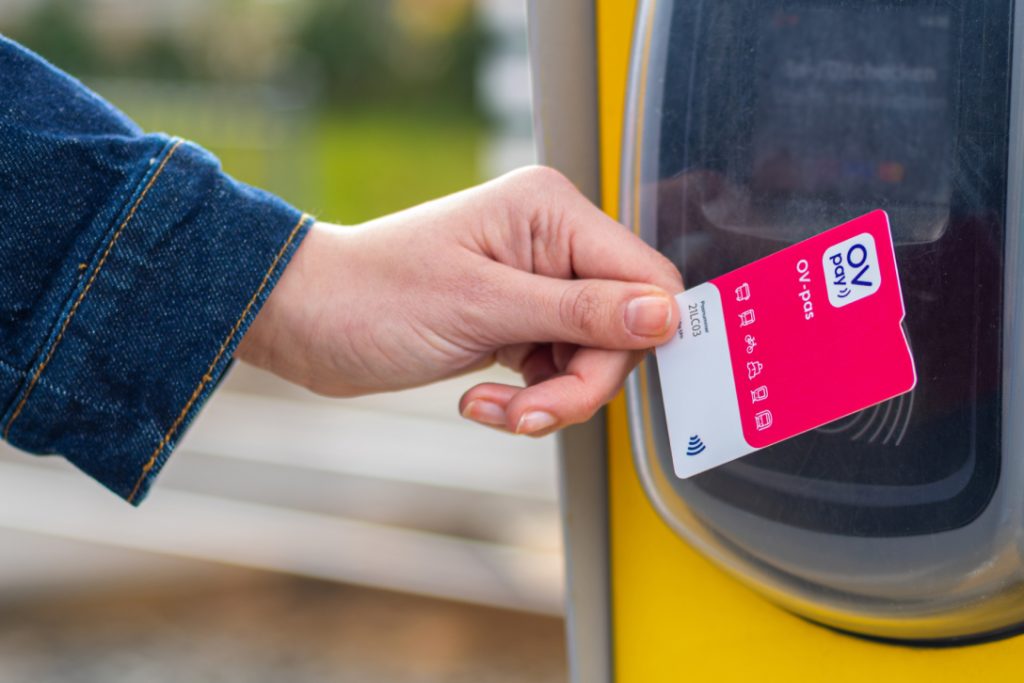
OV Pay is unfortunately only available with some public transport companies at the moment, but it will be rolled out widely in 2023. Soon, you’ll be able to check in on public transport with your Travel Card. We’ll keep you updated.
To use Greenwheels with the Travel Card, you need a Greenwheels account to which you can link your payment information. It’s easiest to create a new account with Greenwheels, using your business email address, for example.
- When creating an account, choose> Private> Sometimes
- Fill in the rest of your details to complete your account.
- To complete your registration, please choose a payment method.
- Select Credit Card here
- Enter the card details of your Travel Card
Tip:
- If you’re asked for a PIN or password, you’ll be asked to enter the personal PIN you created when activating the card. This code has 6 digits.
To use the Amber app via the Travel Card, you need an Amber account to which you can link your payment information. It’s easiest to create a new account with Amber, using your business email address, for example.
- Create a new account in the Amber app via
Sign up
- Use your business email address, add your driver’s license and phone number.
- Once you are in your account, click on profile and click on change payment method.
- Then choose credit card
- Enter the card details of your Travel Card
Tip:
- If you’re asked for a PIN or password, you’ll be asked to enter the personal PIN you created when activating the card. This code has 6 digits.
To use Sixt with the Travel Card, you need a Sixt account to which you can link your payment information. It’s easiest to create a new account with Sixt, using your business email address, for example. Or add your Travel Card if you already have a Sixt account.
- Create your Sixt account and follow the steps in the Sixt App
- Under Account, select: Booking Profiles> + Add profile
- Profile Name: “Figo Travel Card” / Enter your business email address / Invoice Address: your company address / Add Card, and fill in your Figo Card details
- Your account is now linked!
- When booking a business trip, select your Figo Travel Card
Tip:
- If you’re asked for a PIN or password, you’ll be asked to enter the personal PIN you created when activating the card. This code has 6 digits.
To use ShareNow with the Travel Card, you need a ShareNow account to which you can link your payment information. It’s easiest to create a new account with ShareNow, using your business email address, for example.
- Create your ShareNow account and follow the steps in the ShareNow App
- Under Payment profiles, select: Add Business profile
- Verify with the password you set for your Figo Travel Card. This is a six-digit password.
- You’ll receive the second code via SMS on your phone. Then click Verify.
- Your account is now linked!
- Select your Business account when booking
To use Felyx with the Travel Card, you need a Felyx account to which you can link your payment information. Follow the steps below after creating your account. (Already have a Felyx account? Then also activate your Work profile and follow the steps below.)
- When creating an account, choose> Payment Profiles
- Please note that you must select/activate your Business account
- Select “+ Add payment method”> Add debit/credit card
- Enter your Figo Travel Card details here and complete with Add Card
- When making a business booking: select your business Travel Card via the menu
Tip:
- If you’re asked for a PIN or password, you’ll be asked to enter the personal PIN you created when activating the card. This code has 6 digits.
To use Green Mobility via the Travel Card, you need a Green Mobility account to which you can link your payment information. It’s easiest to create a new account with Green Mobility using your business email address, for example. Already have an account? Then add your Travel Card as a payment option for business trips.
- When you add the payment details, click on Account> Billing> Credit card and fill in the details of your Travel Card.
Yes, that’s possible! You can link any mobility-related application to your TravelCard. Check with your HR colleague to see if you’re eligible.